YouTube動画やGoogleマップなどの外部コンテンツをWebページに埋め込むiframeタグはWeb制作に欠かせない要素です。
本記事では、基本的な書き方からレスポンシブ対応、JavaScriptとの連携、セキュリティ対策やエラーの解決方法を解説します。
iframeタグとは:書き方と注意点
Webサイトを作っていると、「Googleマップをページの中に表示したい」「YouTubeの動画を埋め込みたい」といった要望が出てきます。
これを実現するタグが「iframeタグ」です。
ここでは、iframeタグの基本、知っておくべきセキュリティを解説します。
iframeの役割と外部サイトを埋め込む仕組みframeタグやembed・videoタグとの違いiframeは非推奨?セキュリティの注意点
iframeの役割と外部サイトを埋め込む仕組み
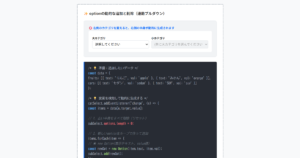
<iframe>(インラインフレーム)タグの役割は、「自分のWebページの中に、別のWebページやファイルを設置させる」ことです。
この「どのページを設置するか」を指定するのがsrc属性です。
iframeで読み込めるのは、以下のいずれかに限られます。
- 自分のサーバー内にある別のHTMLファイル
- YouTubeやGoogleマップなど、公式が「埋め込み用のURL」を提供しているサービス
- 埋め込みを許可している外部サイト
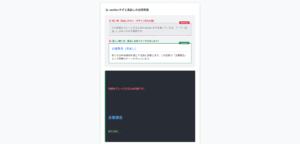
1. 外部サービスの埋め込み(例:Googleマップ)
2. 同じサーバー内の別HTMLを埋め込むイメージ
※ここにabout.htmlの中身が表示されます
<iframe
src=”https://www.google.com/maps/embed?…”
width=”600″
height=”450″
></iframe>
<!– 💡 自分のサイト内の別のHTMLを読み込む –>
<iframe src=”./sub-page.html”></iframe>
※終了タグ(</iframe>)は絶対に省略しないでください。省略するとページ全体が崩壊します。
HTMLコード表示
<div class="hiframe-sec1-wrapper">

  <div class="hiframe-sec1-demo-area">
    <div class="hiframe-sec1-box">
      <div class="hiframe-sec1-label">🪟 iframeによる外部・内部コンテンツの埋め込み</div>

      <div class="hiframe-sec1-visual">
        <p style="font-size:12px; color:#0d6efd; font-weight:bold; margin:0 0 5px 0;">1. 外部サービスの埋め込み(例:Googleマップ)</p>
        <div class="hiframe-sec1-mock-iframe">
          <iframe
            src="https://www.google.com/maps/embed?pb=!1m18!1m12!1m3!1d3240.8280303808788!2d139.76454981525882!3d35.68123618019432!2m3!1f0!2f0!3f0!3m2!1i1024!2i768!4f13.1!3m3!1m2!1s0x60188bfbd89f700b%3A0x277c49ba34ed38!2sTokyo%20Station!5e0!3m2!1sen!2sjp!4v1680000000000!5m2!1sen!2sjp"
            width="100%"
            height="150"
            style="border:0;"
            allowfullscreen=""
            loading="lazy">
          </iframe>
        </div>

        <p style="font-size:12px; color:#198754; font-weight:bold; margin:20px 0 5px 0;">2. 同じサーバー内の別HTMLを埋め込むイメージ</p>
        <div class="hiframe-sec1-mock-local">
          <div style="padding:10px; border:2px dashed #198754; background:#d1e7dd; color:#0f5132; text-align:center; height: 100px; display:flex; align-items:center; justify-content:center;">
            <iframe src="/about.html"><br>
            ※ここにabout.htmlの中身が表示されます
          </div>
        </div>
      </div>

      <div class="hiframe-sec1-code">
        <!-- 💡 src属性に読み込みたいURLを指定する --><br>
        <span class="hiframe-sec1-hl-green"><iframe</span><br>
          <span class="hiframe-sec1-hl-blue">src="https://www.google.com/maps/embed?..."</span><br>
          width="600"<br>
          height="450"<br>
        <span class="hiframe-sec1-hl-green">></iframe></span><br><br>
        <!-- 💡 自分のサイト内の別のHTMLを読み込む --><br>
        <span class="hiframe-sec1-hl-green"><iframe</span> <span class="hiframe-sec1-hl-blue">src="./sub-page.html"</span><span class="hiframe-sec1-hl-green">></iframe></span>
      </div>
      <p class="hiframe-sec1-note">※終了タグ(</iframe>)は絶対に省略しないでください。省略するとページ全体が崩壊します。</p>
    </div>
  </div>
</div>
CSSコード表示
.hiframe-sec1-wrapper {
  background-color: #f8f9fa;
  padding: 20px;
  border: 1px solid #dee2e6;
  border-radius: 4px;
  font-family: sans-serif;
}

.hiframe-sec1-demo-area {
  display: flex;
  justify-content: center;
}

.hiframe-sec1-box {
  background-color: #ffffff;
  border: 2px dashed #adb5bd;
  padding: 25px;
  width: 100%;
  max-width: 500px;
  border-radius: 4px;
}

.hiframe-sec1-label {
  font-size: 15px;
  font-weight: bold;
  margin-bottom: 20px;
  color: #333;
}

.hiframe-sec1-visual {
  background-color: #f1f3f5;
  padding: 20px;
  border-radius: 8px;
  margin-bottom: 20px;
  border: 1px solid #dee2e6;
}

.hiframe-sec1-mock-iframe {
  border: 1px solid #ced4da;
  border-radius: 4px;
  overflow: hidden; /* iframeの角丸用 */
}

.hiframe-sec1-code {
  background-color: #282c34;
  color: #abb2bf;
  padding: 15px;
  font-family: monospace;
  font-size: 13px;
  border-radius: 4px;
  line-height: 1.6;
  border-left: 4px solid #0d6efd;
}

.hiframe-sec1-hl-green {
  color: #98c379;
  font-weight: bold;
}

.hiframe-sec1-hl-blue {
  color: #61afef;
  font-weight: bold;
}

.hiframe-sec1-note {
  font-size: 12px;
  color: #666;
  margin-top: 10px;
  line-height: 1.5;
}
frameタグやembed・videoタグとの違い
外部コンテンツを読み込むタグには、iframe以外にもいくつか存在します。
どれをどんな場面で使うべきか、明確な使い分けを知っておく必要があります。
<iframe>vs<embed>
昔はFlashプラグインなどを読み込むために<embed>が使われましたが、現在はPDFファイルをWebページ内に直接表示させたい時くらいしか出番がありません。
別のWebページ(HTML)を読み込むなら<iframe>です。<iframe>vs<video>
「自分のサーバーにアップロードしたmp4ファイル」を再生するなら<video>タグを使います。
一方、「YouTubeにアップされている動画」をページに埋め込む場合は、YouTubeが提供するHTML形式のプレーヤーを読み込む必要があるため<iframe>を使います。
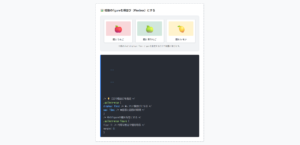
1. 自前のmp4ファイルなら <video>
2. YouTubeの埋め込みなら <iframe>
<video src=”/videos/sample.mp4″ controls></video>
<!– 💡 2. YouTubeの動画を埋め込む場合 –>
<iframe
width=”560″ height=”315″
src=”https://www.youtube.com/embed/動画ID”
allow=”accelerometer; autoplay; encrypted-media…”
></iframe>
HTMLコード表示
<div class="hiframe-sec2-wrapper">

  <div class="hiframe-sec2-demo-area">
    <div class="hiframe-sec2-box">
      <div class="hiframe-sec2-label">🎞️ videoタグとiframeタグ(YouTube)の使い分け</div>

      <div class="hiframe-sec2-visual">
        <p style="font-size:12px; color:#198754; font-weight:bold; margin:0 0 5px 0;">1. 自前のmp4ファイルなら <video></p>
        <div class="hiframe-sec2-mock-video">
          <div style="background:#000; color:#fff; height:120px; display:flex; flex-direction:column; justify-content:center; align-items:center;">
            <span style="font-size:24px;">▶️</span>
            <span style="font-size:10px; margin-top:5px;">自社サーバーの movie.mp4</span>
          </div>
        </div>

        <p style="font-size:12px; color:#dc3545; font-weight:bold; margin:20px 0 5px 0;">2. YouTubeの埋め込みなら <iframe></p>
        <div class="hiframe-sec2-mock-youtube">
          <div style="background:#e9ecef; border:1px solid #ced4da; height:120px; display:flex; flex-direction:column; justify-content:center; align-items:center;">
            <span style="font-size:24px; color:#dc3545;">🟥▶</span>
            <span style="font-size:10px; margin-top:5px; color:#333;">YouTube提供のHTMLプレーヤー</span>
          </div>
        </div>
      </div>

      <div class="hiframe-sec2-code">
        <!-- 💡 1. 自分のmp4を再生する場合 --><br>
        <span class="hiframe-sec2-hl-green"><video</span> src="/videos/sample.mp4" controls<span class="hiframe-sec2-hl-green">></video></span><br><br>
        <!-- 💡 2. YouTubeの動画を埋め込む場合 --><br>
        <span class="hiframe-sec2-hl-blue"><iframe</span><br>
          width="560" height="315" <br>
          src="https://www.youtube.com/embed/動画ID"<br>
          allow="accelerometer; autoplay; encrypted-media..."<br>
        <span class="hiframe-sec2-hl-blue">></iframe></span>
      </div>
    </div>
  </div>
</div>
CSSコード表示
.hiframe-sec2-wrapper {
  background-color: #f8f9fa;
  padding: 20px;
  border: 1px solid #dee2e6;
  border-radius: 4px;
  font-family: sans-serif;
}

.hiframe-sec2-demo-area {
  display: flex;
  justify-content: center;
}

.hiframe-sec2-box {
  background-color: #ffffff;
  border: 2px dashed #adb5bd;
  padding: 25px;
  width: 100%;
  max-width: 500px;
  border-radius: 4px;
}

.hiframe-sec2-label {
  font-size: 15px;
  font-weight: bold;
  margin-bottom: 20px;
  color: #333;
}

.hiframe-sec2-visual {
  background-color: #f1f3f5;
  padding: 20px;
  border-radius: 8px;
  margin-bottom: 20px;
  border: 1px solid #dee2e6;
}

.hiframe-sec2-mock-video {
  border-radius: 4px;
  overflow: hidden;
}

.hiframe-sec2-mock-youtube {
  border-radius: 4px;
  overflow: hidden;
}

.hiframe-sec2-code {
  background-color: #282c34;
  color: #abb2bf;
  padding: 15px;
  font-family: monospace;
  font-size: 13px;
  border-radius: 4px;
  line-height: 1.6;
  border-left: 4px solid #198754;
}

.hiframe-sec2-hl-green {
  color: #98c379;
  font-weight: bold;
}

.hiframe-sec2-hl-blue {
  color: #61afef;
  font-weight: bold;
}
iframeは非推奨?セキュリティの注意点
もしあなたが、適当に拾ってきた外部サイトのURLを<iframe>で読み込んだとします。
しかし、その外部サイトがハッキングされ、悪意のあるプログラム(マルウェア)が仕込まれていた場合、あなたのサイトを訪れたユーザーのPC上で悪意のあるプログラムが実行されます。
その結果、あなたのサイト自体がウイルス対策ソフトによって「トロイの木馬」や「疑わしいiframe」といった重大な脅威として検知され、Googleの検索結果からもブロックされてしまうという致命的な被害を受けます。
出処のわからない怪しいサイトは絶対に読み込まないのが大前提ですが、安全性を高めるためにsandbox属性を使用するのがよいです。
sandbox属性をつけると、読み込んだiframe内での「JavaScriptの実行」や「フォームの送信」といった危険な行動をすべて禁止できます。
必要に応じてsandbox="allow-scripts"のように、許可する行動だけをホワイトリスト形式で追加していくのが安全です。
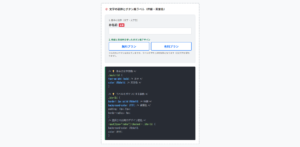
❌ 無防備なiframe(危険なプログラムも実行される)
😈 ※悪意あるJSが親サイトを攻撃するかも
⭕️ sandboxで隔離されたiframe(安全)
🔒 ※JSやポップアップの実行を完全にブロック!
<iframe src=”https://example.com”></iframe>
<!– 💡 sandbox属性をつけて完全に無害化(隔離)する –>
<iframe src=”https://example.com” sandbox></iframe>
<!– 💡 JSの実行だけは許可(allow)したい場合 –>
<iframe
src=”https://example.com”
sandbox=”allow-scripts”
></iframe>
※YouTubeなどの公式埋め込みコードには、最初から最適な allow 属性や sandbox 属性が設定されていることが多いので、基本はコピペでOKです。
HTMLコード表示
<div class="hiframe-sec3-wrapper">

  <div class="hiframe-sec3-demo-area">
    <div class="hiframe-sec3-box">
      <div class="hiframe-sec3-label">🛡️ sandbox属性を使ったセキュリティ対策</div>

      <div class="hiframe-sec3-visual">
        <p style="font-size:12px; color:#dc3545; font-weight:bold; margin:0 0 5px 0;">❌ 無防備なiframe(危険なプログラムも実行される)</p>
        <div class="hiframe-sec3-mock-danger">
          <iframe src="怪しいサイト"><br>
          <span style="font-size:20px;">😈</span> <span style="font-size:11px;">※悪意あるJSが親サイトを攻撃するかも</span>
        </div>

        <p style="font-size:12px; color:#198754; font-weight:bold; margin:20px 0 5px 0;">⭕️ sandboxで隔離されたiframe(安全)</p>
        <div class="hiframe-sec3-mock-safe">
          <iframe src="怪しいサイト" sandbox><br>
          <span style="font-size:20px;">🔒</span> <span style="font-size:11px;">※JSやポップアップの実行を完全にブロック!</span>
        </div>
      </div>

      <div class="hiframe-sec3-code">
        <!-- ⚠️ そのまま読み込むのはリスクがある --><br>
        <iframe src="https://example.com"></iframe><br><br>
        <!-- 💡 sandbox属性をつけて完全に無害化(隔離)する --><br>
        <iframe src="https://example.com" <span class="hiframe-sec3-hl-red">sandbox</span>></iframe><br><br>
        <!-- 💡 JSの実行だけは許可(allow)したい場合 --><br>
        <iframe <br>
          src="https://example.com" <br>
          <span class="hiframe-sec3-hl-green">sandbox="allow-scripts"</span><br>
        ></iframe>
      </div>
      <p class="hiframe-sec3-note">※YouTubeなどの公式埋め込みコードには、最初から最適な allow 属性や sandbox 属性が設定されていることが多いので、基本はコピペでOKです。</p>
    </div>
  </div>
</div>
CSSコード表示
.hiframe-sec3-wrapper {
  background-color: #f8f9fa;
  padding: 20px;
  border: 1px solid #dee2e6;
  border-radius: 4px;
  font-family: sans-serif;
}

.hiframe-sec3-demo-area {
  display: flex;
  justify-content: center;
}

.hiframe-sec3-box {
  background-color: #ffffff;
  border: 2px dashed #adb5bd;
  padding: 25px;
  width: 100%;
  max-width: 500px;
  border-radius: 4px;
}

.hiframe-sec3-label {
  font-size: 15px;
  font-weight: bold;
  margin-bottom: 20px;
  color: #333;
}

.hiframe-sec3-visual {
  background-color: #f1f3f5;
  padding: 20px;
  border-radius: 8px;
  margin-bottom: 20px;
  border: 1px solid #dee2e6;
}

.hiframe-sec3-mock-danger {
  background-color: #f8d7da;
  color: #842029;
  border: 2px dashed #dc3545;
  padding: 15px;
  text-align: center;
  border-radius: 4px;
  font-family: monospace;
}

.hiframe-sec3-mock-safe {
  background-color: #d1e7dd;
  color: #0f5132;
  border: 2px solid #198754;
  padding: 15px;
  text-align: center;
  border-radius: 4px;
  font-family: monospace;
}

.hiframe-sec3-code {
  background-color: #282c34;
  color: #abb2bf;
  padding: 15px;
  font-family: monospace;
  font-size: 13px;
  border-radius: 4px;
  line-height: 1.6;
  border-left: 4px solid #dc3545;
}

.hiframe-sec3-hl-red {
  color: #e06c75;
  font-weight: bold;
}

.hiframe-sec3-hl-green {
  color: #98c379;
  font-weight: bold;
}

.hiframe-sec3-note {
  font-size: 12px;
  color: #666;
  margin-top: 10px;
  line-height: 1.5;
}
外部コンテンツをiframeで埋め込む方法
Webサイト制作において、外部サービスの機能やコンテンツを自分のページに表示させるiframeによる埋め込みは、頻繁に使用されます。
実務では、ゼロからURLを手書きすることはほとんどありません。
対象となるサービス(YouTubeやGoogleマップなど)が提供している「共有」や「埋め込み」ボタンから、専用のコードを取得して貼り付けるのが基本です。
ここでは、実務で多用される主要コンテンツの埋め込み方法を解説します。
- YouTube動画の埋め込みと自動再生
- Googleマップ(地図)の埋め込み
- PDFやExcel、SNSの埋め込み
YouTube動画の埋め込みと自動再生
Webサイトに動画を配置する際、自社サーバーの負荷を避けるためにYouTubeを利用するのが現在の主流になっています。
動画を自動再生させたい場合は、autoplay=1に加えて、mute=1(消音設定)をセットで指定する必要があります。
音が鳴らない状態(ミュート)であれば、ブラウザは自動再生を許可します。
また、レスポンシブ対応として、動画の縦横比(16:9)を保ったままスマホの画面幅に合わせて縮小させるCSS(aspect-ratio)の指定が実務では必須です。
HTMLコード表示
<div class="hiframe-embed1-wrapper">

  <div class="hiframe-embed1-demo-area">
    <div class="hiframe-embed1-box">
      <div class="hiframe-embed1-label">▶️ YouTubeの埋め込みと自動再生(レスポンシブ対応)</div>

      <div class="hiframe-embed1-visual">
        <p style="font-size:12px; color:#198754; font-weight:bold; margin:0 0 10px 0;">⭕️ 画面幅に合わせて伸縮する16:9の動画</p>
        <div class="hiframe-embed1-youtube-mock">
          <div style="font-size: 30px; color: #ff0000; margin-bottom: 10px;">▶</div>
          <div style="font-size: 12px; color: #fff;">無音で自動再生中... (autoplay & mute)</div>
        </div>
      </div>

      <div class="hiframe-embed1-code">
        <!-- 💡 YouTubeのURLパラメータに autoplay と mute を追加 --><br>
        <span class="hiframe-embed1-hl-green"><iframe</span> <br>
          class="responsive-youtube"<br>
          src="https://www.youtube.com/embed/動画ID<span class="hiframe-embed1-hl-red">?autoplay=1&mute=1</span>" <br>
          allow="autoplay; encrypted-media"<br>
        <span class="hiframe-embed1-hl-green">></iframe></span><br><br>
        /* 💡 縦横比を16:9に保ってスマホ対応させるCSS */<br>
        <span class="hiframe-embed1-hl-blue">.responsive-youtube</span> {<br>
          width: 100%;<br>
          <span class="hiframe-embed1-hl-green">aspect-ratio: 16 / 9;</span> /* ★これだけで16:9を維持! */<br>
          border: none;<br>
        }
      </div>
    </div>
  </div>
</div>
CSSコード表示
.hiframe-embed1-wrapper {
  background-color: #f8f9fa;
  padding: 20px;
  border: 1px solid #dee2e6;
  border-radius: 4px;
  font-family: sans-serif;
}

.hiframe-embed1-demo-area {
  display: flex;
  justify-content: center;
}

.hiframe-embed1-box {
  background-color: #ffffff;
  border: 2px dashed #adb5bd;
  padding: 25px;
  width: 100%;
  max-width: 500px;
  border-radius: 4px;
}

.hiframe-embed1-label {
  font-size: 15px;
  font-weight: bold;
  margin-bottom: 20px;
  color: #333;
}

.hiframe-embed1-visual {
  background-color: #f1f3f5;
  padding: 20px;
  border-radius: 8px;
  margin-bottom: 20px;
  border: 1px solid #dee2e6;
}

.hiframe-embed1-youtube-mock {
  width: 100%;
  aspect-ratio: 16 / 9;
  background-color: #111;
  display: flex;
  flex-direction: column;
  justify-content: center;
  align-items: center;
  border-radius: 8px;
  box-shadow: 0 4px 8px rgba(0,0,0,0.2);
}

.hiframe-embed1-code {
  background-color: #282c34;
  color: #abb2bf;
  padding: 15px;
  font-family: monospace;
  font-size: 13px;
  border-radius: 4px;
  line-height: 1.6;
  border-left: 4px solid #198754;
}

.hiframe-embed1-hl-green {
  color: #98c379;
  font-weight: bold;
}

.hiframe-embed1-hl-blue {
  color: #61afef;
  font-weight: bold;
}

.hiframe-embed1-hl-red {
  color: #e06c75;
  font-weight: bold;
}
Googleマップ(地図)の埋め込み
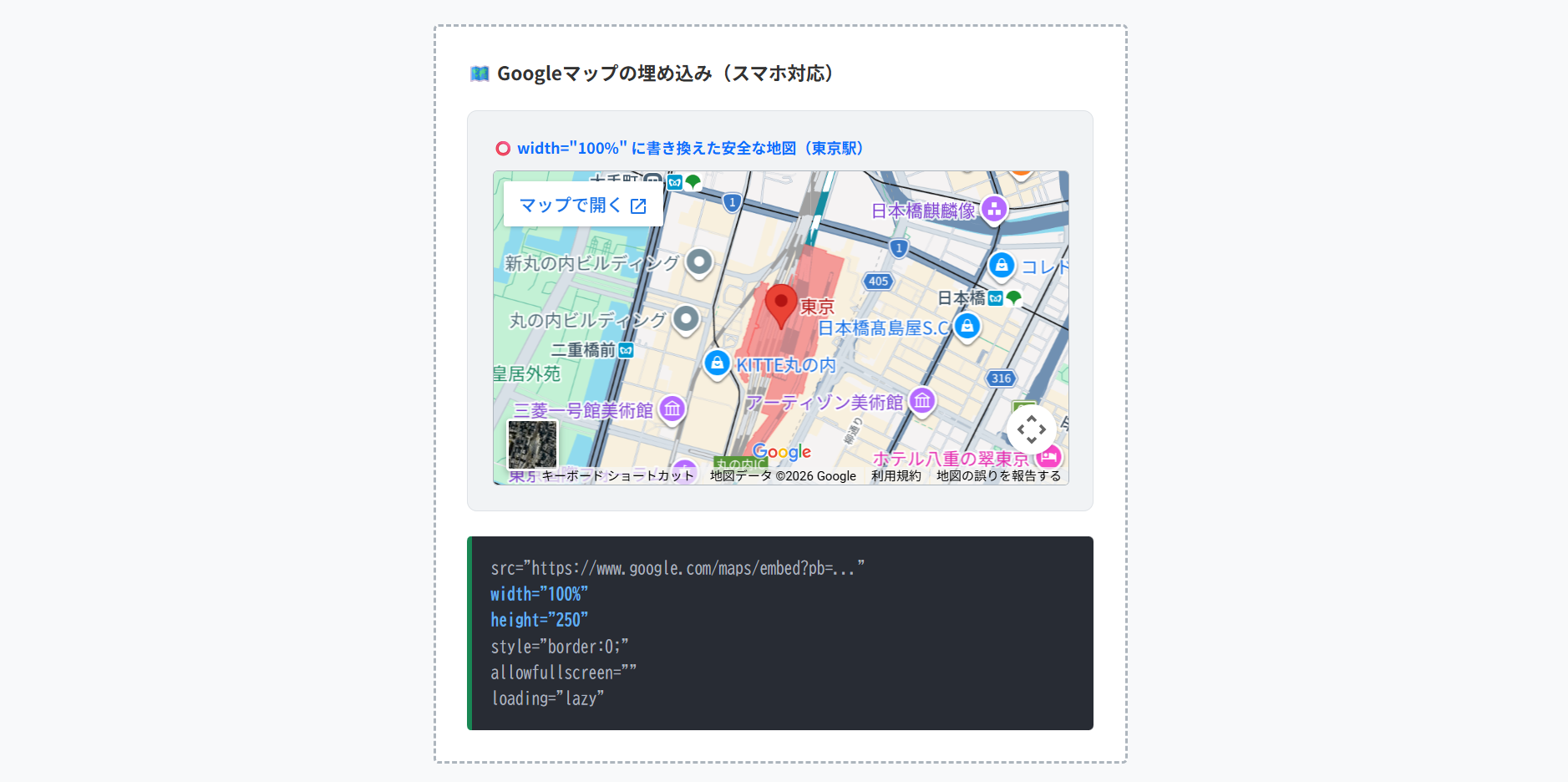
店舗のアクセスページや会社概要などでGoogleマップを埋め込む作業は、Web制作における定番です。
発行された埋め込みコードのwidth="600"の部分をHTML側で直接width="100%"に書き換えるか、あるいはCSSを使って.map-iframe { width: 100%; }と指定します。
これにより、PCでもスマホでも親要素(画面の枠)に合わせて地図が自動でフィットするようになります。
HTMLコード表示
<div class="hiframe-embed2-wrapper">

  <div class="hiframe-embed2-demo-area">
    <div class="hiframe-embed2-box">
      <div class="hiframe-embed2-label">🗺️ Googleマップの埋め込み(スマホ対応)</div>

      <div class="hiframe-embed2-visual">
        <p style="font-size:12px; color:#0d6efd; font-weight:bold; margin:0 0 10px 0;">⭕️ width="100%" に書き換えた安全な地図(東京駅)</p>

        <div class="hiframe-embed2-map-container">
          <iframe
            src="https://www.google.com/maps/embed?pb=!1m18!1m12!1m3!1d3240.8280303808788!2d139.76454987677564!3d35.68123620000001!2m3!1f0!2f0!3f0!3m2!1i1024!2i768!4f13.1!3m3!1m2!1s0x60188bfbd89f700b%3A0x277c49ba34ed38!2z5p2x5Lqs6aeF!5e0!3m2!1sja!2sjp!4v1700000000000!5m2!1sja!2sjp"
            width="100%"
            height="250"
            style="border:0;"
            allowfullscreen=""
            loading="lazy"
            referrerpolicy="no-referrer-when-downgrade">
          </iframe>
        </div>
      </div>

      <div class="hiframe-embed2-code">
          src="https://www.google.com/maps/embed?pb=..." <br>
          <span class="hiframe-embed2-hl-blue">width="100%"</span> <br>
          <span class="hiframe-embed2-hl-blue">height="250"</span><br>
          style="border:0;" <br>
          allowfullscreen="" <br>
          loading="lazy"<br>
      </div>
    </div>
  </div>
</div>
CSSコード表示
.hiframe-embed2-wrapper {
  background-color: #f8f9fa;
  padding: 20px;
  border: 1px solid #dee2e6;
  border-radius: 4px;
  font-family: sans-serif;
}

.hiframe-embed2-demo-area {
  display: flex;
  justify-content: center;
}

.hiframe-embed2-box {
  background-color: #ffffff;
  border: 2px dashed #adb5bd;
  padding: 25px;
  width: 100%;
  max-width: 500px;
  border-radius: 4px;
}

.hiframe-embed2-label {
  font-size: 15px;
  font-weight: bold;
  margin-bottom: 20px;
  color: #333;
}

.hiframe-embed2-visual {
  background-color: #f1f3f5;
  padding: 20px;
  border-radius: 8px;
  margin-bottom: 20px;
  border: 1px solid #dee2e6;
}

/* iframeを囲むコンテナ(角丸などの装飾用) */
.hiframe-embed2-map-container {
  width: 100%;
  border-radius: 4px;
  overflow: hidden; /* iframeの角を丸く見せるため */
  border: 1px solid #adb5bd;
  background-color: #e9ecef;
}

/* 内部のiframeを確実に100%にする */
.hiframe-embed2-map-container iframe {
  display: block;
  width: 100%;
}

.hiframe-embed2-code {
  background-color: #282c34;
  color: #abb2bf;
  padding: 15px;
  font-family: monospace;
  font-size: 13px;
  border-radius: 4px;
  line-height: 1.6;
  border-left: 4px solid #198754;
}

.hiframe-embed2-hl-green {
  color: #98c379;
  font-weight: bold;
}

.hiframe-embed2-hl-blue {
  color: #61afef;
  font-weight: bold;
}

.hiframe-embed2-hl-red {
  color: #e06c75;
  font-weight: bold;
}
PDFやExcel、SNSの埋め込み
企業のIR情報や共有の表計算データ、さらに企業のSNSアカウントの投稿を埋め込むケースも増加しています。
- PDFの埋め込み
ブラウザに依存する不安定なiframeでの直接読み込みは避け、Googleドライブ等の「PDF埋め込みビューア機能」を経由させるか、確実に見せたい場合は画像(JPGなど)に変換して配置するのが安全です。 - SNS・Excelの埋め込み
各公式サービスが提供している「埋め込みコード取得機能」を使用してください。
Instagramなら各投稿のメニューから「埋め込み」を選択し、発行されたHTMLをそのまま貼り付けます。
HTMLコード表示
<div class="hiframe-embed3-wrapper">

  <div class="hiframe-embed3-demo-area">
    <div class="hiframe-embed3-box">
      <div class="hiframe-embed3-label">📄 PDFやSNS等の安全な埋め込み方法</div>

      <div class="hiframe-embed3-visual">
        <p style="font-size:12px; color:#dc3545; font-weight:bold; margin:0 0 5px 0;">❌ 失敗しやすい書き方(直接URLを指定)</p>
        <div class="hiframe-embed3-mock-bad">
          🚫 表示拒否(接続が拒否されました)
        </div>

        <p style="font-size:12px; color:#198754; font-weight:bold; margin:20px 0 5px 0;">⭕️ 公式の埋め込みコードを利用(Instagramの例)</p>
        <div class="hiframe-embed3-mock-good">
          <div style="display: flex; align-items: center; gap: 10px; margin-bottom: 10px;">
            <div style="width:30px; height:30px; border-radius:50%; background:#e9ecef;"></div>
            <div style="font-weight:bold; font-size:12px;">公式アカウント</div>
          </div>
          <div style="height:100px; background:#f8f9fa; border:1px solid #dee2e6; display:flex; justify-content:center; align-items:center; font-size:11px; color:#666;">
            写真コンテンツ
          </div>
        </div>
      </div>

      <div class="hiframe-embed3-code">
        <!-- ❌ PDFを直接iframeに入れるとスマホで崩れやすい --><br>
        <iframe src="document.pdf"></iframe><br><br>
        <!-- ❌ SNSのURLを直接srcに入れるとブロックされる --><br>
        <iframe src="https://instagram.com/..."></iframe><br><br>
        <!-- ⭕️ SNSは公式が発行したコードをそのまま貼る! --><br>
        <span class="hiframe-embed3-hl-green"><blockquote class="instagram-media" ...></span><br>
          ...公式のタグ...<br>
        <span class="hiframe-embed3-hl-green"></blockquote></span><br>
        <span class="hiframe-embed3-hl-blue"><script async src="//www.instagram.com/embed.js"></script></span><br><br>
        <!-- ⭕️ PDFもGoogleドライブの埋め込み機能等を使うと安定 --><br>
        <span class="hiframe-embed3-hl-green"><iframe src="https://drive.google.com/file/d/ファイルID/preview"></iframe></span>
      </div>
    </div>
  </div>
</div>
CSSコード表示
.hiframe-embed3-wrapper {
  background-color: #f8f9fa;
  padding: 20px;
  border: 1px solid #dee2e6;
  border-radius: 4px;
  font-family: sans-serif;
}

.hiframe-embed3-demo-area {
  display: flex;
  justify-content: center;
}

.hiframe-embed3-box {
  background-color: #ffffff;
  border: 2px dashed #adb5bd;
  padding: 25px;
  width: 100%;
  max-width: 500px;
  border-radius: 4px;
}

.hiframe-embed3-label {
  font-size: 15px;
  font-weight: bold;
  margin-bottom: 20px;
  color: #333;
}

.hiframe-embed3-visual {
  background-color: #f1f3f5;
  padding: 20px;
  border-radius: 8px;
  margin-bottom: 20px;
  border: 1px solid #dee2e6;
}

.hiframe-embed3-mock-bad {
  height: 80px;
  background-color: #f8d7da;
  color: #842029;
  border: 1px solid #f5c2c7;
  display: flex;
  justify-content: center;
  align-items: center;
  font-size: 13px;
  font-weight: bold;
  border-radius: 4px;
}

.hiframe-embed3-mock-good {
  background-color: #fff;
  border: 1px solid #ced4da;
  padding: 15px;
  border-radius: 8px;
  box-shadow: 0 2px 4px rgba(0,0,0,0.05);
}

.hiframe-embed3-code {
  background-color: #282c34;
  color: #abb2bf;
  padding: 15px;
  font-family: monospace;
  font-size: 13px;
  border-radius: 4px;
  line-height: 1.6;
  border-left: 4px solid #0d6efd;
}

.hiframe-embed3-hl-green {
  color: #98c379;
  font-weight: bold;
}

.hiframe-embed3-hl-blue {
  color: #61afef;
  font-weight: bold;
}
iframeのサイズ調整とレスポンシブ対応
外部コンテンツを埋め込む際に必須となるのが、CSSを使ったデザイン調整です。
<iframe>タグは、デフォルトのままだとブラウザが勝手に決めた固定サイズで表示され、スマホの画面からはみ出したり、不格好な枠線がついてしまいます。
ここでは、実務で頻出するサイズ調整、センタリング、不要なスクロールバーの削除などを解説します。
- 幅と高さを100%にする方法
- 中身に合わせて高さを自動調整する
- 中央寄せと枠線の消し方
- スクロールバーの非表示と制御
幅と高さを100%にする方法
iframeを親要素の幅いっぱいに広げたい、あるいは画面全体に全画面表示させたいというケースは多くあります。
- 親要素に合わせる場合
親要素に具体的な高さ(例:height: 500px;)を指定した上でiframeにheight: 100%;を指定します。 - 画面全体(フルスクリーン)にする場合
親要素の高さをheight: 100vh;(画面の高さ100%)という単位を使用します。
⭕️ 親要素の幅・高さにいっぱいに広げる
<div class=”parent-box”>
<iframe src=”…” class=”full-iframe”></iframe>
</div>
/* CSS */
.parent-box {
width: 100%;
height: 400px; /* ★親の高さを必ず決める */
}
.full-iframe {
width: 100%;
height: 100%; /* ★これで親と同じ高さになる */
}
/* 💡 画面全体(フルスクリーン)にしたい場合 */
.fullscreen-iframe {
width: 100vw; /* 画面幅の100% */
height: 100vh; /* 画面の高さの100% */
}
HTMLコード表示
<div class="hiframe-css1-wrapper">

  <div class="hiframe-css1-demo-area">
    <div class="hiframe-css1-box">
      <div class="hiframe-css1-label">📐 幅と高さを100%にする正しい指定</div>

      <div class="hiframe-css1-visual">
        <p style="font-size:12px; color:#198754; font-weight:bold; margin:0 0 5px 0;">⭕️ 親要素の幅・高さにいっぱいに広げる</p>

        <div class="hiframe-css1-parent-container">
          <span class="hiframe-css1-tag-label">親div (height: 150px)</span>

          <div class="hiframe-css1-iframe-mock">
            iframe (width: 100%, height: 100%)
          </div>
        </div>
      </div>

      <div class="hiframe-css1-code">
        <!-- HTML --><br>
        <span class="hiframe-css1-hl-blue"><div class="parent-box"></span><br>
          <iframe src="..." class="full-iframe"></iframe><br>
        <span class="hiframe-css1-hl-blue"></div></span><br><br>
        /* CSS */<br>
        <span class="hiframe-css1-hl-blue">.parent-box</span> {<br>
          width: 100%;<br>
          <span class="hiframe-css1-hl-green">height: 400px;</span> /* ★親の高さを必ず決める */<br>
        }<br>
        <span class="hiframe-css1-hl-blue">.full-iframe</span> {<br>
          <span class="hiframe-css1-hl-green">width: 100%;</span><br>
          <span class="hiframe-css1-hl-green">height: 100%;</span>  /* ★これで親と同じ高さになる */<br>
        }<br><br>
        /* 💡 画面全体(フルスクリーン)にしたい場合 */<br>
        <span class="hiframe-css1-hl-blue">.fullscreen-iframe</span> {<br>
          width: 100vw;  /* 画面幅の100% */<br>
          <span class="hiframe-css1-hl-green">height: 100vh;</span> /* 画面の高さの100% */<br>
        }
      </div>
    </div>
  </div>
</div>
CSSコード表示
.hiframe-css1-wrapper {
  background-color: #f8f9fa;
  padding: 20px;
  border: 1px solid #dee2e6;
  border-radius: 4px;
  font-family: sans-serif;
}

.hiframe-css1-demo-area {
  display: flex;
  justify-content: center;
}

.hiframe-css1-box {
  background-color: #ffffff;
  border: 2px dashed #adb5bd;
  padding: 25px;
  width: 100%;
  max-width: 500px;
  border-radius: 4px;
}

.hiframe-css1-label {
  font-size: 15px;
  font-weight: bold;
  margin-bottom: 20px;
  color: #333;
}

.hiframe-css1-visual {
  background-color: #f1f3f5;
  padding: 20px;
  border-radius: 8px;
  margin-bottom: 20px;
  border: 1px solid #dee2e6;
}

.hiframe-css1-parent-container {
  width: 100%;
  height: 150px;
  background-color: #d1e7dd;
  border: 2px dashed #198754;
  position: relative;
  padding: 20px; /* 余白を取ってiframeの広がりをわかりやすくする */
  box-sizing: border-box;
}

.hiframe-css1-tag-label {
  position: absolute;
  top: -10px;
  left: 10px;
  background-color: #198754;
  color: #fff;
  font-size: 10px;
  padding: 2px 6px;
  border-radius: 2px;
}

.hiframe-css1-iframe-mock {
  width: 100%;
  height: 100%;
  background-color: #fff;
  border: 2px solid #0d6efd;
  display: flex;
  justify-content: center;
  align-items: center;
  color: #0d6efd;
  font-weight: bold;
  font-size: 12px;
}

.hiframe-css1-code {
  background-color: #282c34;
  color: #abb2bf;
  padding: 15px;
  font-family: monospace;
  font-size: 13px;
  border-radius: 4px;
  line-height: 1.6;
  border-left: 4px solid #198754;
}

.hiframe-css1-hl-green {
  color: #98c379;
  font-weight: bold;
}

.hiframe-css1-hl-blue {
  color: #61afef;
  font-weight: bold;
}具体的な幅と高さの指定方法を詳しく知りたい人は「【html&css】width(横幅)とheight(高さ)の指定とボックスモデル」を一読ください。
中身に合わせて高さを自動調整する
読み込むページの内容量が動的に変わる場合、iframeの高さを中身にピッタリ合わせたいという要望は実務で多くあります。
中身に合わせて自動リサイズするには、JavaScriptを使用して読み込み先ページの高さ(scrollHeight)を取得し、iframeのheightに代入する処理が必要です。
※ただし、JSの手法が使えるのは「同じドメイン(自社サイト内)のページを読み込む場合のみ」です。
別ドメインのページを読み込む場合はセキュリティで弾かれるため、高さを固定するかスクロールバーを許容するしかありません。
❌ CSSの height: auto は効かない!
※同じドメインのページを読み込む場合のみ、JSで自動調整が可能です。
読み込まれた内部ページの内容
文章が増えると…
iframeの高さも自動で伸びます!
<iframe
src=”local-page.html”
id=”autoIframe”
onload=”resizeIframe(this)”
></iframe>
/* JavaScript(同一ドメインのみ有効) */
<script>
function resizeIframe(obj) {
// iframe内のドキュメントの高さを取得し、自身の高さに代入
obj.style.height = obj.contentWindow.document.documentElement.scrollHeight + ‘px’;
}
</script>
HTMLコード表示
<div class="hiframe-css2-wrapper">

  <div class="hiframe-css2-demo-area">
    <div class="hiframe-css2-box">
      <div class="hiframe-css2-label">↕️ 中身に合わせて高さを自動調整する(JS)</div>

      <div class="hiframe-css2-visual">
        <p style="font-size:12px; color:#dc3545; font-weight:bold; margin:0 0 5px 0;">❌ CSSの height: auto は効かない!</p>
        <p style="font-size:11px; color:#666; margin-bottom:15px;">※同じドメインのページを読み込む場合のみ、JSで自動調整が可能です。</p>

        <div class="hiframe-css2-mock-container">
          <div class="hiframe-css2-mock-content">
            <p>読み込まれた内部ページの内容</p>
            <p>文章が増えると...</p>
            <p>iframeの高さも自動で伸びます!</p>
          </div>
          <div class="hiframe-css2-mock-resize-bar">JavaScriptで高さを取得して調整</div>
        </div>
      </div>

      <div class="hiframe-css2-code">
        <!-- HTML --><br>
        <span class="hiframe-css2-hl-blue"><iframe</span> <br>
          src="local-page.html" <br>
          id="autoIframe" <br>
          <span class="hiframe-css2-hl-green">onload="resizeIframe(this)"</span><br>
        <span class="hiframe-css2-hl-blue">></iframe></span><br><br>
        /* JavaScript(同一ドメインのみ有効) */<br>
        <script><br>
        <span class="hiframe-css2-hl-blue">function resizeIframe(obj)</span> {<br>
          // iframe内のドキュメントの高さを取得し、自身の高さに代入<br>
          <span class="hiframe-css2-hl-green">obj.style.height = obj.contentWindow.document.documentElement.scrollHeight + 'px';</span><br>
        }<br>
        </script>
      </div>
    </div>
  </div>
</div>
CSSコード表示
.hiframe-css2-wrapper {
  background-color: #f8f9fa;
  padding: 20px;
  border: 1px solid #dee2e6;
  border-radius: 4px;
  font-family: sans-serif;
}

.hiframe-css2-demo-area {
  display: flex;
  justify-content: center;
}

.hiframe-css2-box {
  background-color: #ffffff;
  border: 2px dashed #adb5bd;
  padding: 25px;
  width: 100%;
  max-width: 500px;
  border-radius: 4px;
}

.hiframe-css2-label {
  font-size: 15px;
  font-weight: bold;
  margin-bottom: 20px;
  color: #333;
}

.hiframe-css2-visual {
  background-color: #f1f3f5;
  padding: 20px;
  border-radius: 8px;
  margin-bottom: 20px;
  border: 1px solid #dee2e6;
}

.hiframe-css2-mock-container {
  width: 100%;
  background-color: #fff;
  border: 2px solid #0d6efd;
  border-radius: 4px;
  position: relative;
}

.hiframe-css2-mock-content {
  padding: 15px;
  color: #333;
  font-size: 13px;
  line-height: 1.5;
}

.hiframe-css2-mock-content p {
  margin: 0 0 5px 0;
}

.hiframe-css2-mock-resize-bar {
  background-color: #0d6efd;
  color: #fff;
  font-size: 10px;
  text-align: center;
  padding: 5px;
}

.hiframe-css2-code {
  background-color: #282c34;
  color: #abb2bf;
  padding: 15px;
  font-family: monospace;
  font-size: 13px;
  border-radius: 4px;
  line-height: 1.6;
  border-left: 4px solid #dc3545;
}

.hiframe-css2-hl-green {
  color: #98c379;
  font-weight: bold;
}

.hiframe-css2-hl-blue {
  color: #61afef;
  font-weight: bold;
}
中央寄せと枠線の消し方
ページ内でiframeを中央に配置したい、デフォルトで表示される枠線を消したいというデザイン調整の基本です。
- 枠線を消す
border: none;(またはborder: 0;)を指定します。 - 中央寄せにする
iframeはデフォルトではインライン要素のように振る舞うため、margin: 0 auto;をかけても中央にいきません。display: block;に変更してからmargin: 0 auto;を適用します。
⭕️ CSSで display: block をかけて中央寄せ
中央寄せ(margin: 0 auto)
<iframe src=”…” frameborder=”0″ align=”center”></iframe>
<!– ⭕️ 正しい書き方(デザインはCSSに任せる) –>
<iframe src=”…” class=”centered-iframe”></iframe>
/* CSS */
.centered-iframe {
border: none; /* ★枠線を消す */
display: block; /* ★これを入れないと中央に寄らない */
margin: 0 auto; /* ★中央寄せ */
width: 80%; /* 幅を少し狭める */
}
HTMLコード表示
<div class="hiframe-css3-wrapper">

  <div class="hiframe-css3-demo-area">
    <div class="hiframe-css3-box">
      <div class="hiframe-css3-label">🎯 中央寄せと枠線(border)の消去</div>

      <div class="hiframe-css3-visual">
        <p style="font-size:12px; color:#198754; font-weight:bold; margin:0 0 5px 0;">⭕️ CSSで display: block をかけて中央寄せ</p>

        <div class="hiframe-css3-parent">
          <div class="hiframe-css3-mock-iframe">
            枠線なし(border: none)<br>
            中央寄せ(margin: 0 auto)
          </div>
        </div>
      </div>

      <div class="hiframe-css3-code">
        <!-- ❌ 古い書き方(HTML5では非推奨!) --><br>
        <iframe src="..." <span class="hiframe-css3-hl-red">frameborder="0" align="center"</span>></iframe><br><br>
        <!-- ⭕️ 正しい書き方(デザインはCSSに任せる) --><br>
        <span class="hiframe-css3-hl-blue"><iframe src="..." class="centered-iframe"></iframe></span><br><br>
        /* CSS */<br>
        <span class="hiframe-css3-hl-blue">.centered-iframe</span> {<br>
          <span class="hiframe-css3-hl-green">border: none;</span>    /* ★枠線を消す */<br>
          <span class="hiframe-css3-hl-green">display: block;</span>  /* ★これを入れないと中央に寄らない */<br>
          <span class="hiframe-css3-hl-green">margin: 0 auto;</span>  /* ★中央寄せ */<br>
          width: 80%;      /* 幅を少し狭める */<br>
        }
      </div>
    </div>
  </div>
</div>
CSSコード表示
.hiframe-css3-wrapper {
  background-color: #f8f9fa;
  padding: 20px;
  border: 1px solid #dee2e6;
  border-radius: 4px;
  font-family: sans-serif;
}

.hiframe-css3-demo-area {
  display: flex;
  justify-content: center;
}

.hiframe-css3-box {
  background-color: #ffffff;
  border: 2px dashed #adb5bd;
  padding: 25px;
  width: 100%;
  max-width: 500px;
  border-radius: 4px;
}

.hiframe-css3-label {
  font-size: 15px;
  font-weight: bold;
  margin-bottom: 20px;
  color: #333;
}

.hiframe-css3-visual {
  background-color: #f1f3f5;
  padding: 20px;
  border-radius: 8px;
  margin-bottom: 20px;
  border: 1px solid #dee2e6;
}

.hiframe-css3-parent {
  width: 100%;
  background-color: #e9ecef;
  padding: 15px 0;
  border-radius: 4px;
}

.hiframe-css3-mock-iframe {
  width: 70%;
  height: 80px;
  background-color: #fff;
  border: none; /* 枠線なし */
  display: block;
  margin: 0 auto; /* 中央寄せ */
  display: flex;
  flex-direction: column;
  justify-content: center;
  align-items: center;
  color: #198754;
  font-weight: bold;
  font-size: 11px;
  text-align: center;
  box-shadow: 0 2px 4px rgba(0,0,0,0.05);
}

.hiframe-css3-code {
  background-color: #282c34;
  color: #abb2bf;
  padding: 15px;
  font-family: monospace;
  font-size: 13px;
  border-radius: 4px;
  line-height: 1.6;
  border-left: 4px solid #198754;
}

.hiframe-css3-hl-green {
  color: #98c379;
  font-weight: bold;
}

.hiframe-css3-hl-blue {
  color: #61afef;
  font-weight: bold;
}

.hiframe-css3-hl-red {
  color: #e06c75;
  font-weight: bold;
}要素変換で利用するdisplayプロパティの使い方を詳しく知りたい人は「【html&css】displayの種類は?flexやinline-blockの違い」を一読ください。
スクロールバーの非表示と制御
iframe内に表示されるコンテンツが枠より大きい場合、デフォルトでは邪魔なスクロールバーが表示されます。
これを非表示にしてスッキリ見せたい場合の対処法です。
- (推奨)親のdivで囲んで隠す
iframeを一回り小さい<div>で囲み、親の<div>に対してoverflow: hidden;をかけます。iframeの幅と高さを少し大きめ(width: calc(100% + 20px);など)にしてはみ出させることで、物理的にスクロールバーの部分を画面外に出すという荒技が実務で使われます。 - (妥協案)scrolling=”no”を使う
HTML5では非推奨属性ですが、現在でも大半のブラウザでスクロールを強制停止させる方法として<iframe scrolling="no">が使われることは少なくありません。
⭕️ 親要素で囲んで「物理的に隠す」方法
※右端のスクロールバーが枠外にはみ出して隠れています
<div class=”hide-scroll-box”>
<iframe src=”…” class=”large-iframe”></iframe>
</div>
/* CSS */
.hide-scroll-box {
width: 100%;
height: 200px;
overflow: hidden; /* ★はみ出た部分(スクロールバー)を隠す */
}
.large-iframe {
width: calc(100% + 20px); /* ★スクロールバーの分(約20px)だけ大きくする */
height: 100%;
}
HTMLコード表示
<div class="hiframe-css4-wrapper">

  <div class="hiframe-css4-demo-area">
    <div class="hiframe-css4-box">
      <div class="hiframe-css4-label">🙈 スクロールバーを非表示にするテクニック</div>

      <div class="hiframe-css4-visual">
        <p style="font-size:12px; color:#198754; font-weight:bold; margin:0 0 5px 0;">⭕️ 親要素で囲んで「物理的に隠す」方法</p>

        <div class="hiframe-css4-hide-scroll-wrap">
          <div class="hiframe-css4-mock-iframe-inner">
            <p>外部サイトのコンテンツ</p>
            <p>あえて右側にはみ出させて...</p>
            <p>スクロールバーを枠外へ!</p>
          </div>
          <div class="hiframe-css4-mock-scrollbar"></div>
        </div>
        <p style="font-size:10px; color:#666; margin-top:5px; text-align:center;">※右端のスクロールバーが枠外にはみ出して隠れています</p>
      </div>

      <div class="hiframe-css4-code">
        <!-- HTML --><br>
        <span class="hiframe-css4-hl-blue"><div class="hide-scroll-box"></span><br>
          <iframe src="..." class="large-iframe"></iframe><br>
        <span class="hiframe-css4-hl-blue"></div></span><br><br>
        /* CSS */<br>
        <span class="hiframe-css4-hl-blue">.hide-scroll-box</span> {<br>
          width: 100%;<br>
          height: 200px;<br>
          <span class="hiframe-css4-hl-green">overflow: hidden;</span> /* ★はみ出た部分(スクロールバー)を隠す */<br>
        }<br>
        <span class="hiframe-css4-hl-blue">.large-iframe</span> {<br>
          <span class="hiframe-css4-hl-green">width: calc(100% + 20px);</span> /* ★スクロールバーの分(約20px)だけ大きくする */<br>
          height: 100%;<br>
        }
      </div>
    </div>
  </div>
</div>
CSSコード表示
.hiframe-css4-wrapper {
  background-color: #f8f9fa;
  padding: 20px;
  border: 1px solid #dee2e6;
  border-radius: 4px;
  font-family: sans-serif;
}

.hiframe-css4-demo-area {
  display: flex;
  justify-content: center;
}

.hiframe-css4-box {
  background-color: #ffffff;
  border: 2px dashed #adb5bd;
  padding: 25px;
  width: 100%;
  max-width: 500px;
  border-radius: 4px;
}

.hiframe-css4-label {
  font-size: 15px;
  font-weight: bold;
  margin-bottom: 20px;
  color: #333;
}

.hiframe-css4-visual {
  background-color: #f1f3f5;
  padding: 20px;
  border-radius: 8px;
  margin-bottom: 20px;
  border: 1px solid #dee2e6;
}

/* スクロールバーを隠す親コンテナ */
.hiframe-css4-hide-scroll-wrap {
  width: 100%;
  height: 100px;
  border: 2px solid #198754;
  overflow: hidden; /* ★ここで隠す */
  position: relative;
  background-color: #fff;
  border-radius: 4px;
}

/* iframeの代わりのモック(少し大きくする) */
.hiframe-css4-mock-iframe-inner {
  width: calc(100% + 20px); /* ★スクロールバーの分だけ横に広げる */
  height: 100%;
  padding: 10px;
  color: #333;
  font-size: 12px;
  box-sizing: border-box;
}

.hiframe-css4-mock-iframe-inner p {
  margin: 0 0 5px 0;
}

/* モックのスクロールバー */
.hiframe-css4-mock-scrollbar {
  position: absolute;
  top: 0;
  right: -20px; /* ★親コンテナの外にはみ出させる */
  width: 20px;
  height: 100%;
  background-color: #ccc;
  border-left: 1px solid #aaa;
}

.hiframe-css4-code {
  background-color: #282c34;
  color: #abb2bf;
  padding: 15px;
  font-family: monospace;
  font-size: 13px;
  border-radius: 4px;
  line-height: 1.6;
  border-left: 4px solid #198754;
}

.hiframe-css4-hl-green {
  color: #98c379;
  font-weight: bold;
}

.hiframe-css4-hl-blue {
  color: #61afef;
  font-weight: bold;
}はみ出た部分を隠す際に利用するoverflowプロパティの使い方を詳しく知りたい人は「【html&css】overflowの使い方とhiddenやscrollの使い分け」を一読ください。
iframeとJavaScript・フォームの連携
<iframe>タグは、外部のサイトや動画を表示するだけでなく、フォーム(<form>)の送信先として利用したり、高度なWebアプリケーションのUIを構築することができます。
ここでは、ページ遷移なしでフォーム結果を表示する方法、JavaScriptを使ったDOM操作などについて解説します。
- フォームの送信結果を
iframe内に表示する - JavaScriptで
iframeの中身を取得・操作する iframeの読み込み完了とリロード処理
フォームの送信結果をiframe内に表示する
通常、HTMLのフォームを送信すると、画面全体が送信先のページへと遷移してしまいます。
フォームの送信結果をiframeで受け取るには、<form>のtarget属性の値と<iframe>のname属性の値を完全に一致させます。
これにより、画面全体をリロードすることなく、シームレスな画面更新が可能になります。
⭕️ target属性とname属性を紐付ける
※ここに検索結果のページ(result.html)が表示されます
<form action=”result.html” target=”resultFrame”>
<input type=”text” name=”keyword”>
<button type=”submit”>送信</button>
</form>
<!– 💡 idではなく「name」属性を指定すること! –>
<iframe name=”resultFrame” width=”100%” height=”200″></iframe>
HTMLコード表示
<div class="hiframe-js1-wrapper">

  <div class="hiframe-js1-demo-area">
    <div class="hiframe-js1-box">
      <div class="hiframe-js1-label">📨 フォーム送信結果をiframeに表示</div>

      <div class="hiframe-js1-visual">
        <p style="font-size:12px; color:#198754; font-weight:bold; margin:0 0 10px 0;">⭕️ target属性とname属性を紐付ける</p>

        <div class="hiframe-js1-form-mock">
          <input type="text" placeholder="検索キーワード" class="hiframe-js1-input">
          <button class="hiframe-js1-btn">検索する</button>
        </div>

        <div style="text-align:center; font-size:20px; color:#adb5bd; margin:10px 0;">⬇️</div>

        <div class="hiframe-js1-iframe-mock">
          <p style="color:#666; font-size:12px; margin:0;">※ここに検索結果のページ(result.html)が表示されます</p>
        </div>
      </div>

      <div class="hiframe-js1-code">
        <!-- 💡 フォームのtargetと、iframeのnameを合わせる --><br>
        <span class="hiframe-js1-hl-green"><form action="result.html"</span> <span class="hiframe-js1-hl-red">target="resultFrame"</span><span class="hiframe-js1-hl-green">></span><br>
          <input type="text" name="keyword"><br>
          <button type="submit">送信</button><br>
        <span class="hiframe-js1-hl-green"></form></span><br><br>
        <!-- 💡 idではなく「name」属性を指定すること! --><br>
        <span class="hiframe-js1-hl-blue"><iframe</span> <span class="hiframe-js1-hl-red">name="resultFrame"</span> width="100%" height="200"<span class="hiframe-js1-hl-blue">></iframe></span>
      </div>
    </div>
  </div>
</div>
CSSコード表示
.hiframe-js1-wrapper {
  background-color: #f8f9fa;
  padding: 20px;
  border: 1px solid #dee2e6;
  border-radius: 4px;
  font-family: sans-serif;
}

.hiframe-js1-demo-area {
  display: flex;
  justify-content: center;
}

.hiframe-js1-box {
  background-color: #ffffff;
  border: 2px dashed #adb5bd;
  padding: 25px;
  width: 100%;
  max-width: 500px;
  border-radius: 4px;
}

.hiframe-js1-label {
  font-size: 15px;
  font-weight: bold;
  margin-bottom: 20px;
  color: #333;
}

.hiframe-js1-visual {
  background-color: #f1f3f5;
  padding: 20px;
  border-radius: 8px;
  margin-bottom: 20px;
  border: 1px solid #dee2e6;
}

.hiframe-js1-form-mock {
  display: flex;
  gap: 10px;
  background-color: #fff;
  padding: 15px;
  border: 1px solid #ced4da;
  border-radius: 4px;
}

.hiframe-js1-input {
  flex: 1;
  padding: 8px;
  border: 1px solid #adb5bd;
  border-radius: 4px;
}

.hiframe-js1-btn {
  background-color: #0d6efd;
  color: #fff;
  border: none;
  padding: 8px 15px;
  border-radius: 4px;
  font-weight: bold;
}

.hiframe-js1-iframe-mock {
  background-color: #e9ecef;
  border: 2px solid #198754;
  height: 100px;
  display: flex;
  justify-content: center;
  align-items: center;
  border-radius: 4px;
}

.hiframe-js1-code {
  background-color: #282c34;
  color: #abb2bf;
  padding: 15px;
  font-family: monospace;
  font-size: 13px;
  border-radius: 4px;
  line-height: 1.6;
  border-left: 4px solid #198754;
}

.hiframe-js1-hl-green {
  color: #98c379;
  font-weight: bold;
}

.hiframe-js1-hl-blue {
  color: #61afef;
  font-weight: bold;
}

.hiframe-js1-hl-red {
  color: #e06c75;
  font-weight: bold;
}
JavaScriptでiframeの中身を取得・操作する
HTMLをiframeに埋め込みした際、親ページからiframeの中にある文字やHTMLを取得したり、jQueryを使って操作したりしたいという要望は実務で多々発生します。
JavaScriptやjQueryを使ってiframeの中身を取得・操作できるのは、親ページとiframeの中身が「全く同じドメイン」である場合のみです。
他人のサイトの中身をJSで覗き見たり書き換えたりすることは、ハッキング防止のためブラウザによって完全にブロックされます。
⚠️ 注意:別ドメイン(外部サイト)の操作はエラーになります!
<iframe src=”local.html” id=”myIfm”></iframe>
/* 💡 素のJavaScript(Vanilla JS)で取得・操作する場合 */
const iframe = document.getElementById(‘myIfm’);
const innerDoc = iframe.contentWindow.document;
// iframe内の body のHTMLを書き換える
innerDoc.body.innerHTML = “<p>操作成功!</p>”;
/* 💡 jQueryで取得・操作する場合 */
const $innerBody = $(‘#myIfm’).contents().find(‘body’);
$innerBody.html(“<p>操作成功!</p>”);
HTMLコード表示
<div class="hiframe-js2-wrapper">

  <div class="hiframe-js2-demo-area">
    <div class="hiframe-js2-box">
      <div class="hiframe-js2-label">⚙️ JS / jQueryでのiframe内DOM操作</div>

      <div class="hiframe-js2-visual">
        <p style="font-size:12px; color:#dc3545; font-weight:bold; margin:0 0 5px 0;">⚠️ 注意:別ドメイン(外部サイト)の操作はエラーになります!</p>

        <div class="hiframe-js2-interactive-mock">
          <button class="hiframe-js2-action-btn">親ページからJSを実行</button>
          <div style="margin:10px 0; font-size:20px; text-align:center;">⬇️</div>
          <div class="hiframe-js2-inner-dom-mock">
            <span style="color:#0f5132; font-weight:bold;">iframe内のテキストがJSで書き換わりました!</span>
          </div>
        </div>
      </div>

      <div class="hiframe-js2-code">
        <!-- 対象のiframe(※同一ドメインであること) --><br>
        <iframe src="local.html" id="myIfm"></iframe><br><br>
        /* 💡 素のJavaScript(Vanilla JS)で取得・操作する場合 */<br>
        <span class="hiframe-js2-hl-blue">const</span> iframe = document.getElementById(<span class="hiframe-js2-hl-red">'myIfm'</span>);<br>
        <span class="hiframe-js2-hl-blue">const</span> innerDoc = iframe.<span class="hiframe-js2-hl-green">contentWindow.document</span>;<br>
        <span class="hiframe-js2-hl-comment">// iframe内の body のHTMLを書き換える</span><br>
        innerDoc.body.innerHTML = "<p>操作成功!</p>";<br><br>
        /* 💡 jQueryで取得・操作する場合 */<br>
        <span class="hiframe-js2-hl-blue">const</span> $innerBody = $(<span class="hiframe-js2-hl-red">'#myIfm'</span>).<span class="hiframe-js2-hl-green">contents()</span>.find('body');<br>
        $innerBody.html("<p>操作成功!</p>");
      </div>
    </div>
  </div>
</div>
CSSコード表示
.hiframe-js2-wrapper {
  background-color: #f8f9fa;
  padding: 20px;
  border: 1px solid #dee2e6;
  border-radius: 4px;
  font-family: sans-serif;
}

.hiframe-js2-demo-area {
  display: flex;
  justify-content: center;
}

.hiframe-js2-box {
  background-color: #ffffff;
  border: 2px dashed #adb5bd;
  padding: 25px;
  width: 100%;
  max-width: 500px;
  border-radius: 4px;
}

.hiframe-js2-label {
  font-size: 15px;
  font-weight: bold;
  margin-bottom: 20px;
  color: #333;
}

.hiframe-js2-visual {
  background-color: #f1f3f5;
  padding: 20px;
  border-radius: 8px;
  margin-bottom: 20px;
  border: 1px solid #dee2e6;
}

.hiframe-js2-interactive-mock {
  background-color: #fff;
  padding: 15px;
  border: 1px solid #ced4da;
  border-radius: 4px;
}

.hiframe-js2-action-btn {
  width: 100%;
  background-color: #212529;
  color: #fff;
  border: none;
  padding: 10px;
  border-radius: 4px;
  font-weight: bold;
  cursor: pointer;
}

.hiframe-js2-inner-dom-mock {
  background-color: #d1e7dd;
  border: 2px dashed #198754;
  padding: 15px;
  text-align: center;
  border-radius: 4px;
}

.hiframe-js2-code {
  background-color: #282c34;
  color: #abb2bf;
  padding: 15px;
  font-family: monospace;
  font-size: 13px;
  border-radius: 4px;
  line-height: 1.6;
  border-left: 4px solid #dc3545;
}

.hiframe-js2-hl-green {
  color: #98c379;
  font-weight: bold;
}

.hiframe-js2-hl-blue {
  color: #61afef;
  font-weight: bold;
}

.hiframe-js2-hl-red {
  color: #e06c75;
  font-weight: bold;
}

.hiframe-js2-hl-comment {
  color: #6c757d;
  font-style: italic;
}
iframeの読み込み完了とリロード処理
外部の重いコンテンツを読み込む際、サイト全体の表示速度を落とさないための工夫、読み込みが完了したタイミングでの処理、iframeの中身を再読み込みする仕組みは実務で頻繁に実装します。
- パフォーマンス対策(遅延読み込み)
iframeタグにはloading="lazy"属性を付与します。
これにより、ユーザーがスクロールしてiframeの場所に近づくまで外部リソースの読み込みが保留され、サイト全体の初期表示が速くなります。 - 中身だけのリロード
iframeの中身を更新したい場合は、JSでdocument.getElementById('myIfm').contentWindow.location.reload();を実行するか、src属性に同じURLを再代入(iframe.src = iframe.src;)します。
⭕️ ボタンでiframeの中身だけをリロード
iframe内を再読み込み中…
<iframe
src=”https://…”
id=”mapIframe”
loading=”lazy”
onload=”console.log(‘読み込み完了!’)”
></iframe>
/* 💡 iframeの中身”だけ”をリロードするJS */
<script>
function reloadIframe() {
const ifm = document.getElementById(‘mapIframe’);
// 方法1: location.reload()を使う
ifm.contentWindow.location.reload(true);
// 方法2: srcを再代入する(クロスドメインでも安全)
// ifm.src = ifm.src;
}
</script>
HTMLコード表示
<div class="hiframe-js3-wrapper">

  <div class="hiframe-js3-demo-area">
    <div class="hiframe-js3-box">
      <div class="hiframe-js3-label">🔄 遅延読み込み(lazy)とリロード処理</div>

      <div class="hiframe-js3-visual">
        <p style="font-size:12px; color:#0d6efd; font-weight:bold; margin:0 0 5px 0;">⭕️ ボタンでiframeの中身だけをリロード</p>

        <div class="hiframe-js3-reload-mock">
          <div style="display:flex; justify-content:flex-end; margin-bottom:5px;">
            <button class="hiframe-js3-reload-btn">↻ リロード</button>
          </div>
          <div class="hiframe-js3-iframe-container">
            <span style="font-size:30px;">⏳</span><br>
            <span style="font-size:12px; margin-top:5px;">iframe内を再読み込み中...</span>
          </div>
        </div>
      </div>

      <div class="hiframe-js3-code">
        <!-- 💡 必須!スクロールされるまで読み込みを遅延させる --><br>
        <iframe <br>
          src="https://..." <br>
          id="mapIframe" <br>
          <span class="hiframe-js3-hl-red">loading="lazy"</span> <br>
          <span class="hiframe-js3-hl-green">onload="console.log('読み込み完了!')"</span><br>
        ></iframe><br><br>
        /* 💡 iframeの中身"だけ"をリロードするJS */<br>
        <script><br>
        <span class="hiframe-js3-hl-blue">function</span> reloadIframe() {<br>
          <span class="hiframe-js3-hl-blue">const</span> ifm = document.getElementById(<span class="hiframe-js3-hl-red">'mapIframe'</span>);<br>
          <span class="hiframe-js3-hl-comment">// 方法1: location.reload()を使う</span><br>
          ifm.<span class="hiframe-js3-hl-green">contentWindow.location.reload(true)</span>;<br><br>
          <span class="hiframe-js3-hl-comment">// 方法2: srcを再代入する(クロスドメインでも安全)</span><br>
          <span class="hiframe-js3-hl-comment">// ifm.src = ifm.src;</span><br>
        }<br>
        </script>
      </div>
    </div>
  </div>
</div>
CSSコード表示
.hiframe-js3-wrapper {
  background-color: #f8f9fa;
  padding: 20px;
  border: 1px solid #dee2e6;
  border-radius: 4px;
  font-family: sans-serif;
}

.hiframe-js3-demo-area {
  display: flex;
  justify-content: center;
}

.hiframe-js3-box {
  background-color: #ffffff;
  border: 2px dashed #adb5bd;
  padding: 25px;
  width: 100%;
  max-width: 500px;
  border-radius: 4px;
}

.hiframe-js3-label {
  font-size: 15px;
  font-weight: bold;
  margin-bottom: 20px;
  color: #333;
}

.hiframe-js3-visual {
  background-color: #f1f3f5;
  padding: 20px;
  border-radius: 8px;
  margin-bottom: 20px;
  border: 1px solid #dee2e6;
}

.hiframe-js3-reload-mock {
  background-color: #fff;
  padding: 10px;
  border: 1px solid #ced4da;
  border-radius: 4px;
}

.hiframe-js3-reload-btn {
  background-color: #6c757d;
  color: #fff;
  border: none;
  padding: 5px 10px;
  border-radius: 4px;
  font-size: 12px;
  cursor: pointer;
}

.hiframe-js3-iframe-container {
  height: 120px;
  background-color: #e9ecef;
  border: 1px solid #adb5bd;
  border-radius: 4px;
  display: flex;
  flex-direction: column;
  justify-content: center;
  align-items: center;
  color: #495057;
}

.hiframe-js3-code {
  background-color: #282c34;
  color: #abb2bf;
  padding: 15px;
  font-family: monospace;
  font-size: 13px;
  border-radius: 4px;
  line-height: 1.6;
  border-left: 4px solid #0d6efd;
}

.hiframe-js3-hl-green {
  color: #98c379;
  font-weight: bold;
}

.hiframe-js3-hl-blue {
  color: #61afef;
  font-weight: bold;
}

.hiframe-js3-hl-red {
  color: #e06c75;
  font-weight: bold;
}

.hiframe-js3-hl-comment {
  color: #6c757d;
  font-style: italic;
}
iframeが表示されないエラー・トラブル解決
Web制作の実務において、設定したはずのiframeが表示されないというトラブルは多々あります。
HTMLの文法自体は単純な<iframe>ですが、外部サイトを読み込むという性質上、自分ではコントロールできない「セキュリティの壁」に阻まれることが大半です。
ここでは、「接続拒否」エラーと認証や権限にまつわる「403エラー」の根本的な原因と解決策を解説します。
- 接続拒否の原因と対策
- 403エラーやセキュリティ制御の確認
接続拒否の原因と対策
画面に灰色の悲しい顔のアイコンと共に「refused to connect」と表示されるエラーは有名なトラブルです。
特に多いのが、YouTube動画を埋め込もうとした際の「youtube refused to connect」や「youtube video unavailable」というエラーです。
YouTubeの動画ページを開き、ブラウザ上部のアドレスバーにあるURLをコピーして、そのままiframeのsrc属性に貼り付けてしまいます。
しかし、YouTube側のセキュリティ設定(X-Frame-Options: SAMEORIGINなど)により、通常の視聴ページは他人のサイトのiframe内には表示されないようブロックされます。
外部サービスをiframeで読み込む場合は、そのサービスが提供している「埋め込み専用のURL」を使用しなければなりません。
YouTubeであれば、動画の下にある「共有」ボタンから「埋め込む」を選択して発行された<iframe src="https://www.youtube.com/embed/...">という、/embed/が含まれた専用URLを使用するのがよいです。
❌ NG(通常のURL:接続拒否エラーになる)
⭕️ OK(/embed/ が含まれた専用URL)
<iframe
src=”https://www.youtube.com/watch?v=動画ID“
></iframe>
<!– ⭕️ 埋め込み専用のURLを正しく指定する –>
<iframe
src=”https://www.youtube.com/embed/動画ID“
></iframe>
HTMLコード表示
<div class="hiframe-error1-wrapper">

  <div class="hiframe-error1-demo-area">
    <div class="hiframe-error1-box">
      <div class="hiframe-error1-label">🚫 refused to connect エラーと正しい埋め込み</div>

      <div class="hiframe-error1-visual">
        <p style="font-size:12px; color:#dc3545; font-weight:bold; margin:0 0 5px 0;">❌ NG(通常のURL:接続拒否エラーになる)</p>
        <div class="hiframe-error1-mock-bad">
          <div style="font-size:30px;">☹️</div>
          <div style="font-size:12px; margin-top:10px;">www.youtube.com で接続が拒否されました。</div>
        </div>

        <p style="font-size:12px; color:#198754; font-weight:bold; margin:20px 0 5px 0;">⭕️ OK(/embed/ が含まれた専用URL)</p>
        <div class="hiframe-error1-mock-good">
          <div style="font-size:30px; color:#dc3545;">▶</div>
          <div style="font-size:12px; color:#fff; margin-top:10px;">正常に動画が表示されます</div>
        </div>
      </div>

      <div class="hiframe-error1-code">
        <!-- ❌ 接続拒否(refused to connect)になる原因 --><br>
        <iframe <br>
          src="<span class="hiframe-error1-hl-red">https://www.youtube.com/watch?v=動画ID</span>"<br>
        ></iframe><br><br>
        <!-- ⭕️ 埋め込み専用のURLを正しく指定する --><br>
        <iframe <br>
          src="<span class="hiframe-error1-hl-green">https://www.youtube.com/embed/動画ID</span>"<br>
        ></iframe>
      </div>
    </div>
  </div>
</div>
CSSコード表示
.hiframe-error1-wrapper {
  background-color: #f8f9fa;
  padding: 20px;
  border: 1px solid #dee2e6;
  border-radius: 4px;
  font-family: sans-serif;
}

.hiframe-error1-demo-area {
  display: flex;
  justify-content: center;
}

.hiframe-error1-box {
  background-color: #ffffff;
  border: 2px dashed #adb5bd;
  padding: 25px;
  width: 100%;
  max-width: 500px;
  border-radius: 4px;
}

.hiframe-error1-label {
  font-size: 15px;
  font-weight: bold;
  margin-bottom: 20px;
  color: #333;
}

.hiframe-error1-visual {
  background-color: #f1f3f5;
  padding: 20px;
  border-radius: 8px;
  margin-bottom: 20px;
  border: 1px solid #dee2e6;
}

.hiframe-error1-mock-bad {
  background-color: #e9ecef;
  color: #6c757d;
  height: 120px;
  display: flex;
  flex-direction: column;
  justify-content: center;
  align-items: center;
  border: 1px solid #ced4da;
  border-radius: 4px;
}

.hiframe-error1-mock-good {
  background-color: #212529;
  height: 120px;
  display: flex;
  flex-direction: column;
  justify-content: center;
  align-items: center;
  border-radius: 4px;
  box-shadow: 0 4px 6px rgba(0,0,0,0.1);
}

.hiframe-error1-code {
  background-color: #282c34;
  color: #abb2bf;
  padding: 15px;
  font-family: monospace;
  font-size: 13px;
  border-radius: 4px;
  line-height: 1.6;
  border-left: 4px solid #dc3545;
}

.hiframe-error1-hl-green {
  color: #98c379;
  font-weight: bold;
}

.hiframe-error1-hl-red {
  color: #e06c75;
  font-weight: bold;
}
403エラーやセキュリティ制御の確認
もう一つ、実務で頻繁に発生するのが「403 Forbidden(アクセス権限がありません)」というエラーです。
これは、読み込もうとしているページが「ログインしていないと見られないページ(社内システムや会員限定ページ)」である場合に発生します。
「自分はログインしているのに、iframeで埋め込んだ途端にエラーになる」と混乱するケースが増えています。
Googleや各社サービスが認証用の見えないiframeを配置してログイン状態を確認する仕組みを採用していますが、ブラウザは「他人のサイト内で使われるCookie」をデフォルトで強力にブロックします。
そのため、大元のサイトではログインできていても、iframeを通した途端にログイン情報が引き継がれず、未ログイン扱いとなって403エラーで弾かれます。
ログインが必要な管理画面やダッシュボードを無理やり公開用のWebサイトにiframeで埋め込むのは諦めましょう。
外部サービスを埋め込む際は、対象のファイル設定を「リンクを知っている全員が閲覧可」に変更し、誰でもアクセスできるパブリックな共有リンクを取得してからsrcに指定します。
❌ NG(非公開・要ログインのURLを埋め込む)
(iframe内ではCookieがブロックされ未ログイン状態になります)
⭕️ OK(「一般公開」の共有用URLを使用する)
<iframe
src=”https://admin.example.com/private/doc“
></iframe>
<!– ⭕️ 誰でも見られる公開(パブリック)リンクを発行して使う –>
<iframe
src=”https://example.com/share/public_view/12345“
></iframe>
HTMLコード表示
<div class="hiframe-error2-wrapper">

  <div class="hiframe-error2-demo-area">
    <div class="hiframe-error2-box">
      <div class="hiframe-error2-label">🔒 403 Forbidden(権限エラー)の回避</div>

      <div class="hiframe-error2-visual">
        <p style="font-size:12px; color:#dc3545; font-weight:bold; margin:0 0 5px 0;">❌ NG(非公開・要ログインのURLを埋め込む)</p>
        <div class="hiframe-error2-mock-403">
          <div style="font-size:30px;">⛔</div>
          <div style="font-size:14px; font-weight:bold; margin-top:5px;">403 Forbidden</div>
          <div style="font-size:11px; margin-top:5px;">アクセス権限がありません。<br>(iframe内ではCookieがブロックされ未ログイン状態になります)</div>
        </div>

        <p style="font-size:12px; color:#198754; font-weight:bold; margin:20px 0 5px 0;">⭕️ OK(「一般公開」の共有用URLを使用する)</p>
        <div class="hiframe-error2-mock-public">
          <div style="font-size:24px;">📄</div>
          <div style="font-size:12px; margin-top:10px;">公開ドキュメントが正常に表示されます</div>
        </div>
      </div>

      <div class="hiframe-error2-code">
        <!-- ❌ 403エラーになる(自分だけ見えて他人は見えない事も) --><br>
        <iframe <br>
          src="<span class="hiframe-error2-hl-red">https://admin.example.com/private/doc</span>"<br>
        ></iframe><br><br>
        <!-- ⭕️ 誰でも見られる公開(パブリック)リンクを発行して使う --><br>
        <iframe <br>
          src="<span class="hiframe-error2-hl-green">https://example.com/share/public_view/12345</span>"<br>
        ></iframe>
      </div>
    </div>
  </div>
</div>
CSSコード表示
.hiframe-error2-wrapper {
  background-color: #f8f9fa;
  padding: 20px;
  border: 1px solid #dee2e6;
  border-radius: 4px;
  font-family: sans-serif;
}

.hiframe-error2-demo-area {
  display: flex;
  justify-content: center;
}

.hiframe-error2-box {
  background-color: #ffffff;
  border: 2px dashed #adb5bd;
  padding: 25px;
  width: 100%;
  max-width: 500px;
  border-radius: 4px;
}

.hiframe-error2-label {
  font-size: 15px;
  font-weight: bold;
  margin-bottom: 20px;
  color: #333;
}

.hiframe-error2-visual {
  background-color: #f1f3f5;
  padding: 20px;
  border-radius: 8px;
  margin-bottom: 20px;
  border: 1px solid #dee2e6;
}

.hiframe-error2-mock-403 {
  background-color: #f8d7da;
  color: #842029;
  height: 130px;
  display: flex;
  flex-direction: column;
  justify-content: center;
  align-items: center;
  text-align: center;
  border: 1px solid #f5c2c7;
  border-radius: 4px;
  padding: 10px;
}

.hiframe-error2-mock-public {
  background-color: #fff;
  color: #0f5132;
  height: 100px;
  display: flex;
  flex-direction: column;
  justify-content: center;
  align-items: center;
  border: 2px solid #198754;
  border-radius: 4px;
  box-shadow: 0 2px 4px rgba(0,0,0,0.05);
}

.hiframe-error2-code {
  background-color: #282c34;
  color: #abb2bf;
  padding: 15px;
  font-family: monospace;
  font-size: 13px;
  border-radius: 4px;
  line-height: 1.6;
  border-left: 4px solid #dc3545;
}

.hiframe-error2-hl-green {
  color: #98c379;
  font-weight: bold;
}

.hiframe-error2-hl-red {
  color: #e06c75;
  font-weight: bold;
}
まとめ
分かりやすいようにまとめを記載します。
- 最大の役割
ページ内に枠を作り、別のWebページや動画、地図などの外部コンテンツを表示する。 - 基本の書き方
src属性に、読み込みたいコンテンツのURLまたはローカルファイルのパスを指定する。 - セキュリティ対策
外部サイトを読み込む際は、不正なスクリプト実行を防ぐsandbox属性を付与する。 - レスポンシブ対応
HTMLの固定幅を避け、width: 100%を指定する(動画の場合はaspect-ratioで縦横比を維持)。 - パフォーマンス対策
重い外部リソースによる表示遅延を防ぐため、loading="lazy"属性を付与して遅延読み込みさせる。 - フォームとの連携
<form>のtarget属性と<iframe>のname属性を一致させることで、ページ遷移せずに送信結果を表示できる。 - JavaScriptでの操作
親ページとiframe内が同一ドメインである場合のみ、JSで中身の取得・操作が可能。 - 代表的なエラー
URLの直接指定による接続拒否や認証エラーを防ぐため、公式の埋め込み専用URLを使用する。
よくある質問(FAQ)
HTMLのiframeタグとは何ですか?何に使いますか?
iframe(インラインフレーム)は、Webページの中に「別のWebページや外部コンテンツ」を枠として埋め込んで表示するタグです。
ページを移動させることなく、YouTube動画、Googleマップ、SNSの投稿、あるいは自サイトの別ページなどを表示できるため、Webサイト制作に欠かせない要素です。
iframeを使うとSEO(検索順位)に悪影響を与えますか?
基本的に、適切に使用していればSEOに悪影響を与えることはありません。
ただし、検索エンジンは「iframeの中身は外部のコンテンツである」と正しく認識するため、iframeの中にあるテキストが自サイトの評価としてプラスされることもありません。
そのため、サイトのメインコンテンツをiframeで表示するのは避け、地図や動画などの補助的な情報の埋め込みに留めるのがベストプラクティスです。
iframeで別サイトを埋め込んだら「接続が拒否されました」と出るのはなぜですか?
埋め込もうとしている対象のWebサイトが、セキュリティ対策として「他人のサイトのiframe内での表示」をシステム側でブロックしているためです。
YouTubeなどを表示させたい場合は、ブラウザのURLバーのURLをコピーするのではなく、各サービスが提供している「埋め込み専用のURL」を使用してください。
iframeをスマホの画面幅に合わせてレスポンシブ(自動伸縮)にするには?
HTMLのタグに直接書かれている固定幅を削除するかCSSで上書きし、width: 100%;を指定します。
さらに、YouTube動画などを埋め込む場合は、縦横比を保ったまま縮小させるために、aspect-ratio: 16 / 9;を併せて指定するのが確実なレスポンシブ手法です。
iframeの高さを中のコンテンツに合わせて自動で伸ばすことはできますか?
CSSのheight: auto;を指定しても、iframeでは仕様上機能しません。
中身に合わせて高さを自動調整するには、JavaScriptを使用して「読み込んだ中身の高さを取得し、iframeの高さに代入する」というプログラムを書く必要があります。
ただし、セキュリティの都合上、この方法が使えるのは「自サイト内の別ページ」を読み込んだ場合のみとなります。